
Creating quote wallpapers on iPhone
Turn a thought you want to remember into a lock-screen-friendly wallpaper, then set it from your iPhone’s wallpaper controls.
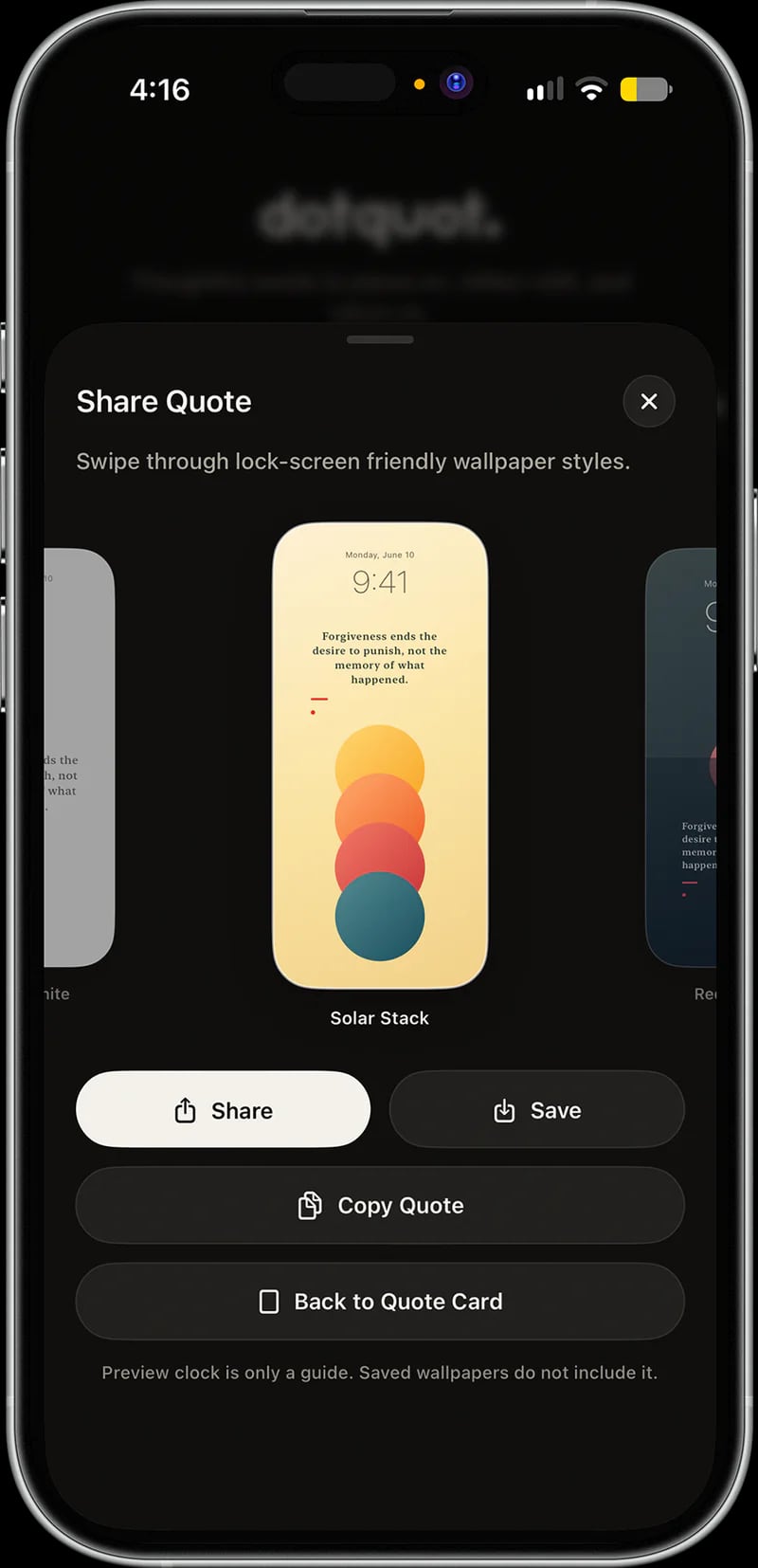
A good wallpaper does not need to compete with everything on your screen. It can do one quiet job: keep a useful thought close enough to meet you during the day.
DotQuot lets you turn a quote into a wallpaper designed for an iPhone screen. Wallpaper creation and export are part of the free core experience; supporter access adds category color styles for more visual choices.
1. Find the thought you want to keep
Start with a quote that still feels useful after the first reading. You can browse DotQuot’s collections, choose a category for your daily Dot, or return to something you previously saved.
Shorter thoughts often work especially well on a Lock Screen because the words remain readable around the clock, widgets, and controls. The best choice is not necessarily the most dramatic quote—it is the one you would genuinely like to encounter again.
2. Open the sharing and wallpaper choices
From the quote screen, use the share control beneath the card. You can also swipe up from the quote view to begin sharing. Choose the wallpaper or quote-card option presented by DotQuot, then move into the design preview.
3. Choose a style that leaves room to breathe
Preview the available wallpaper treatments and choose a design that suits both the quote and your screen. DotQuot’s current wallpaper styles use gradients, shadows, textures, and quiet typography while preserving enough open space for the words.
- Check that the clock does not cover an important line.
- Prefer strong contrast between the text and background.
- Leave the Home Screen simpler if app icons make the quote difficult to read.
- Treat color as atmosphere, not decoration that overpowers the words.
4. Export the wallpaper to Photos
Save the finished wallpaper to your photo library. The first time you do this, iOS may ask whether DotQuot can add the image to Photos. The exported image is for your personal, non-commercial use.
5. Set it as your iPhone wallpaper
Open Settings on your iPhone, tap Wallpaper, then tap Add New Wallpaper. Choose Photos and select the image exported from DotQuot. Reposition it if needed, tap Add, and choose whether to use it as a wallpaper pair or customize the Home Screen separately.
Let the wallpaper earn its place
Try living with the quote for a few days. If it becomes visual background, replace it. A wallpaper can be temporary and still be useful. The goal is not to build a permanent collection—it is to let the right words remain visible for as long as they are helping.